Magpie
Connect Magpie to SoleAPI through API Key quick import or manual configuration.
Magpie
Magpie can connect to third-party APIs through provider configurations. SoleAPI provides a Magpie quick-import entry on the API Key management page, as well as a manual-configuration path.
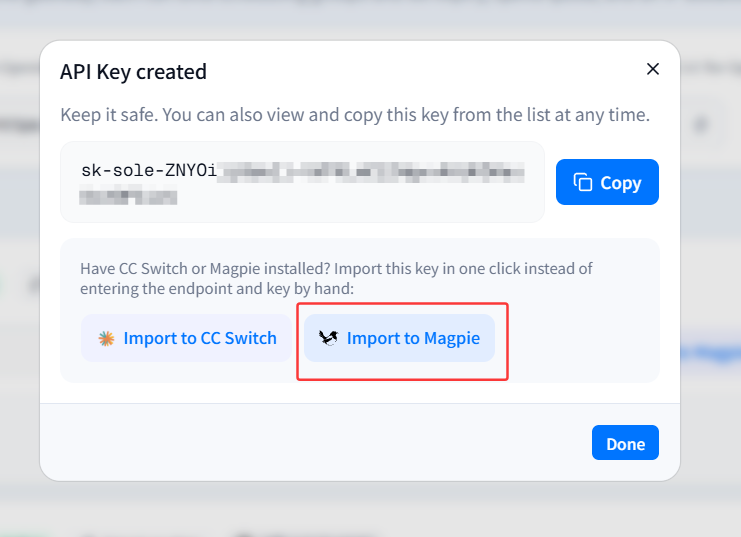
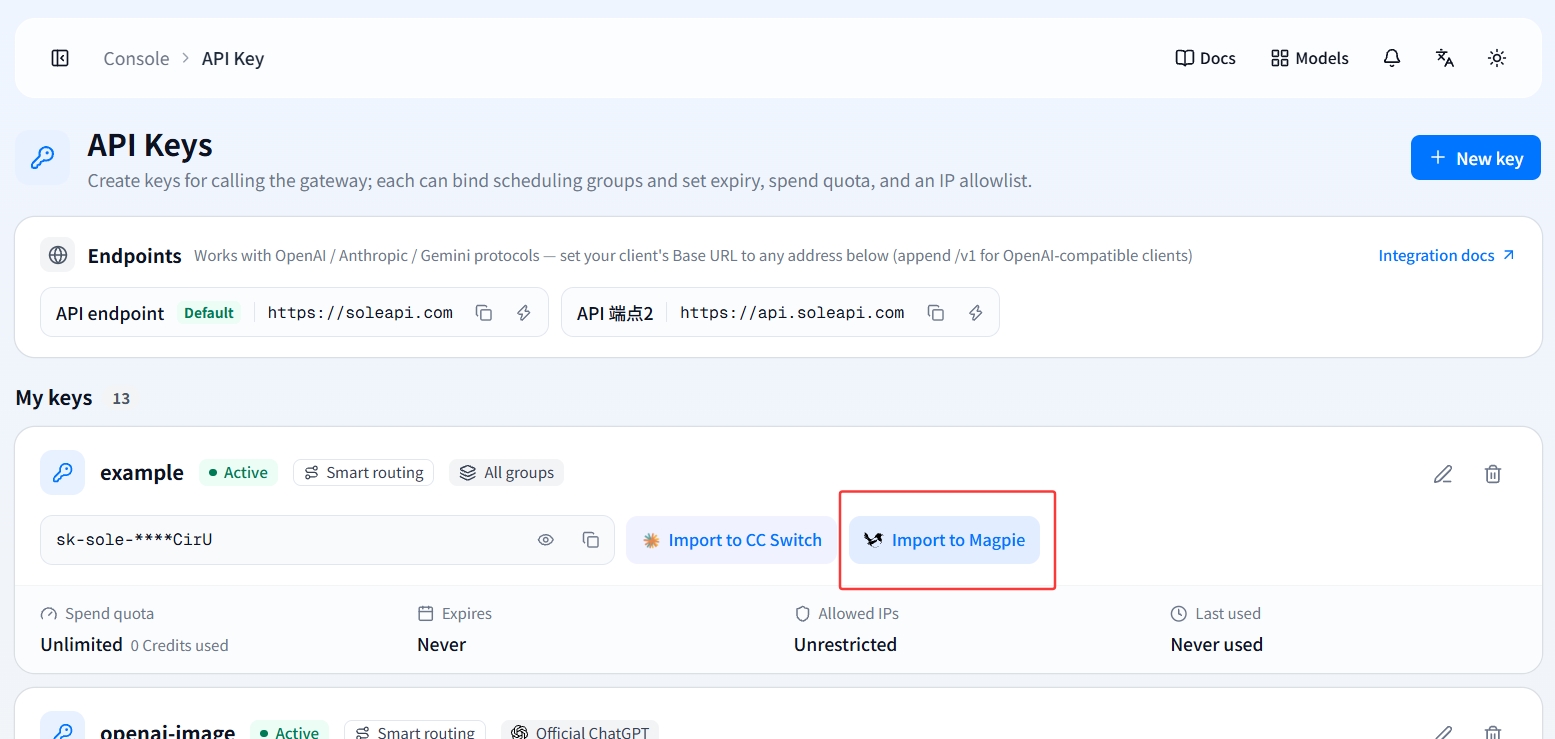
The API Key page has two Magpie quick-import entries: the dialog shown after creating an API Key, and the Import to Magpie button on an existing API Key card. Both open the same import dialog.
Preparation
Before you begin:
- Install a working Magpie client;
- Create an API Key in the SoleAPI console;
- Make sure the target Key is active;
- Make sure its dispatch group includes the models you want to use.
Step 1: Quick import from the API Key page
Entry A: Dialog after creating an API Key
After creating an API Key, click Import to Magpie in the success dialog.
Entry B: Existing API Key card
On the API Key management page, find the target card, confirm its name, active status, and dispatch group, then click Import to Magpie.
Step 2: Confirm the configuration in the unified import dialog
1. Check the Key and provider name
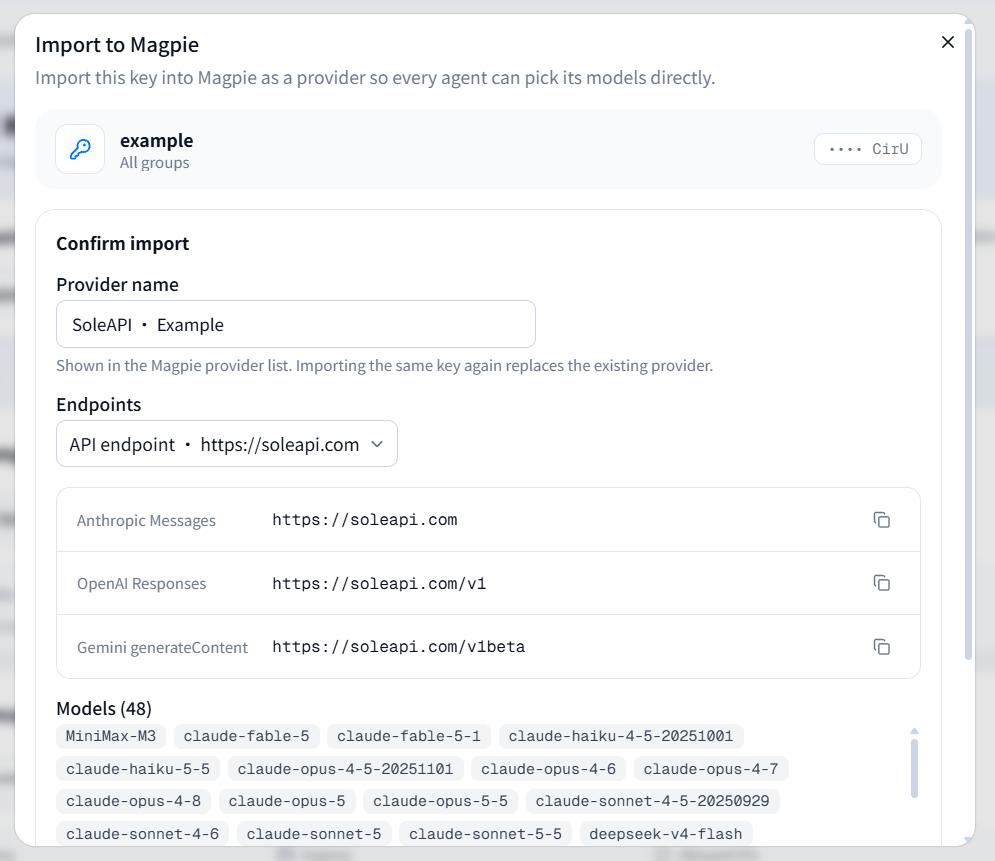
Both entries open a full-screen Import to Magpie dialog. The Key is imported as one provider for Magpie Agents; there is no target-tool or default-model selection in this dialog.
Check the Key name, dispatch group, and masked key suffix at the top. In Provider name, the default is similar to SoleAPI · Key name. Keep it or change it to a name that is easy to recognize in Magpie.
The dialog warns that importing the same Key again will replace the existing configuration. This differs from CC Switch, where repeated imports create duplicate providers.
2. Select the endpoint and check the three protocol URLs
Open the Endpoint dropdown and select a route. The page currently offers API endpoint · https://soleapi.com and API endpoint 2 · https://api.soleapi.com; use the options shown on your page.
The dialog displays three protocol URLs at the same time:
| Protocol | Automatically shown URL |
|---|---|
| Anthropic Messages | https://soleapi.com |
| OpenAI Responses | https://soleapi.com/v1 |
| Gemini generateContent | https://soleapi.com/v1beta |
When you change the route, all three domains update automatically. These are previews, not fields that you fill in one by one, and they are not a protocol selector. The copy buttons only copy the corresponding URL. Whether a model can use a protocol still depends on the available SoleAPI endpoint.
3. Check the available-model preview
Scroll to Available models (N). It lists the model IDs that will be included for this Key. This is a preview, not a single default-model selector; the count and entries depend on the Key and the current platform state.
If the target model is missing, confirm the Key and dispatch group first, then check whether the platform currently has an available endpoint. Do not repeatedly import the same Key just to refresh one model.
The model list may have its own scrollbar. To reach the final action, continue scrolling the dialog until the bottom notice and buttons are visible.
4. Check everything, then click Import to Magpie
Before submitting, check the Key, provider name, endpoint, and available models. The bottom of the dialog says that Magpie will show the content to be added and save it only after confirmation.
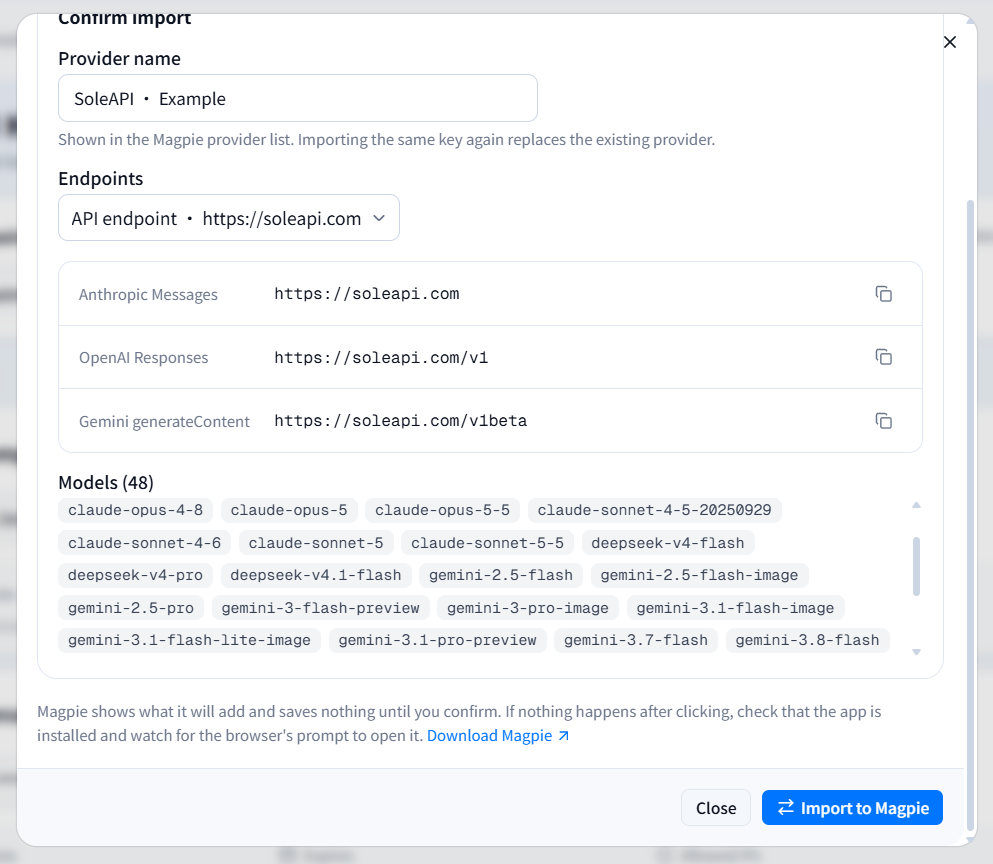
When ready, click Import to Magpie and watch for the browser's open-application prompt. Magpie will then show a preview of the provider; review it and confirm saving inside the client. Completing the web form does not by itself save the provider in Magpie. Click Close instead if you do not want to continue.
5. Confirm the import inside Magpie
After Magpie opens, it shows a modal preview of the provider to be imported. Review the information and click the add button in the lower-right corner.
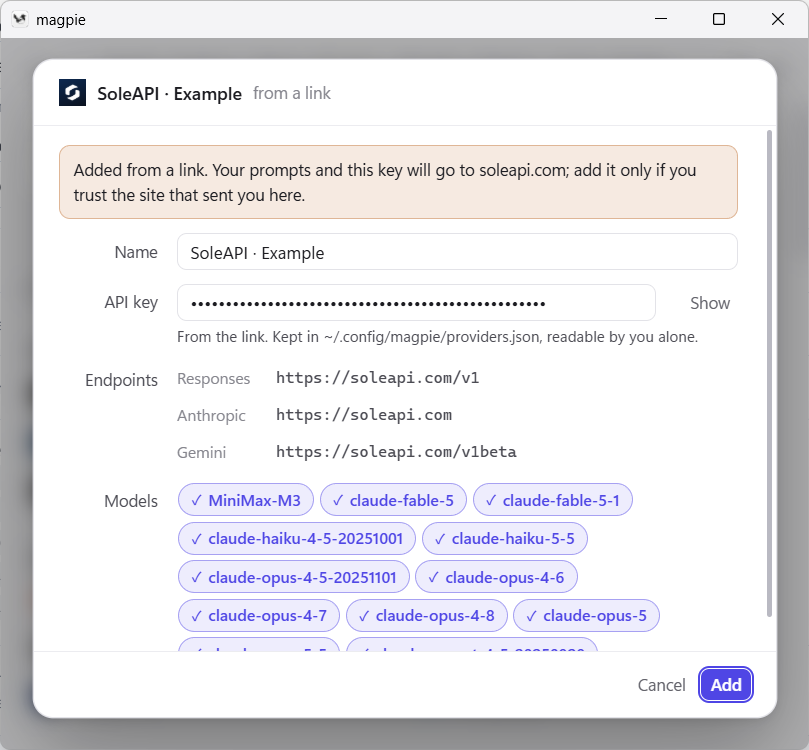
Step 3: Confirm the import in Magpie
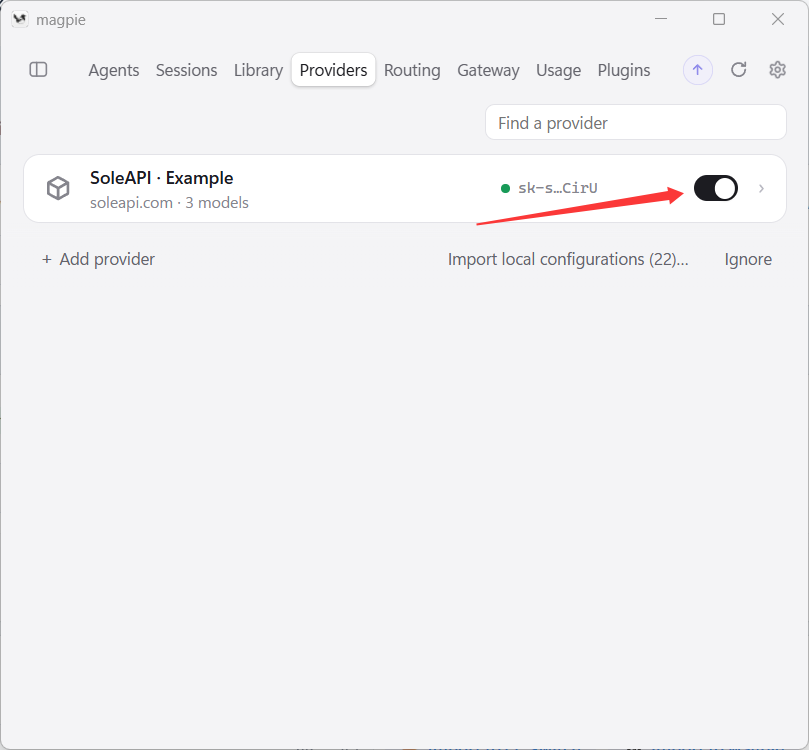
Return to the Magpie provider list and confirm that SoleAPI was added. If the client requires manual enabling, select the provider and enable it.
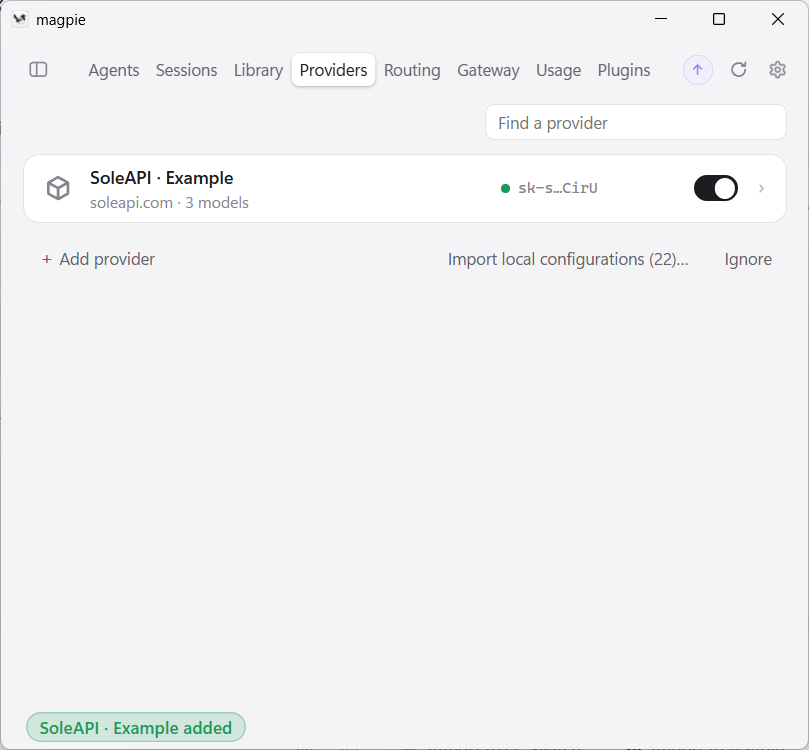
Manual Magpie configuration (fallback)
If quick import is unavailable, add a provider manually. Field names may vary by version:
-
Open Magpie's provider management page and click Add provider;
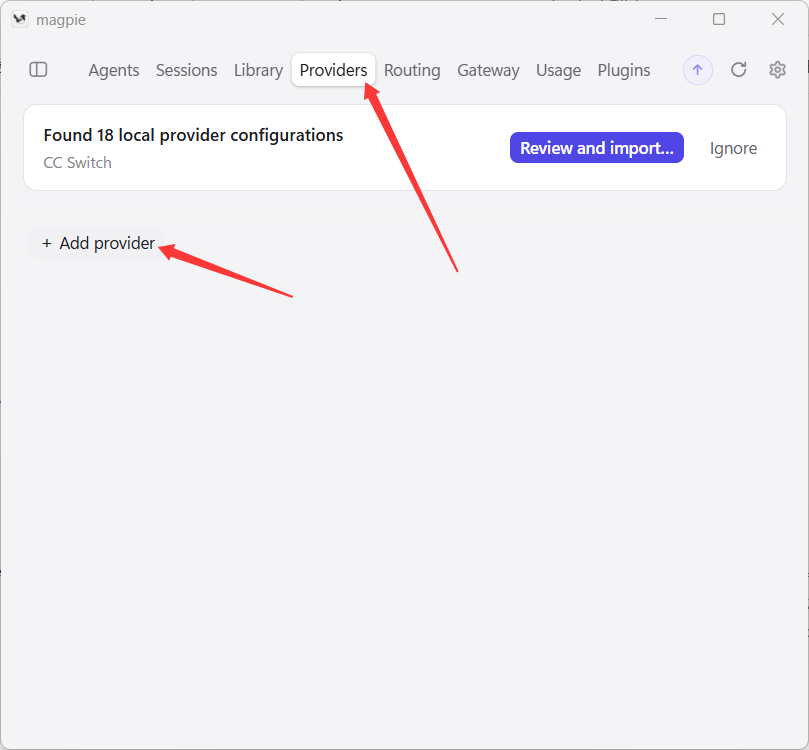
-
Select Custom provider;
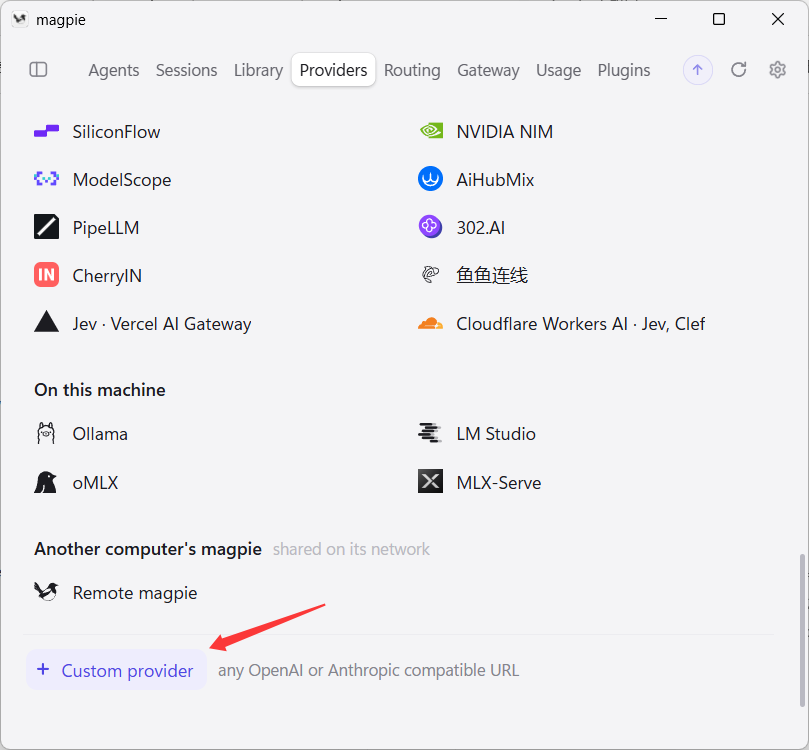
-
Fill in the provider information;
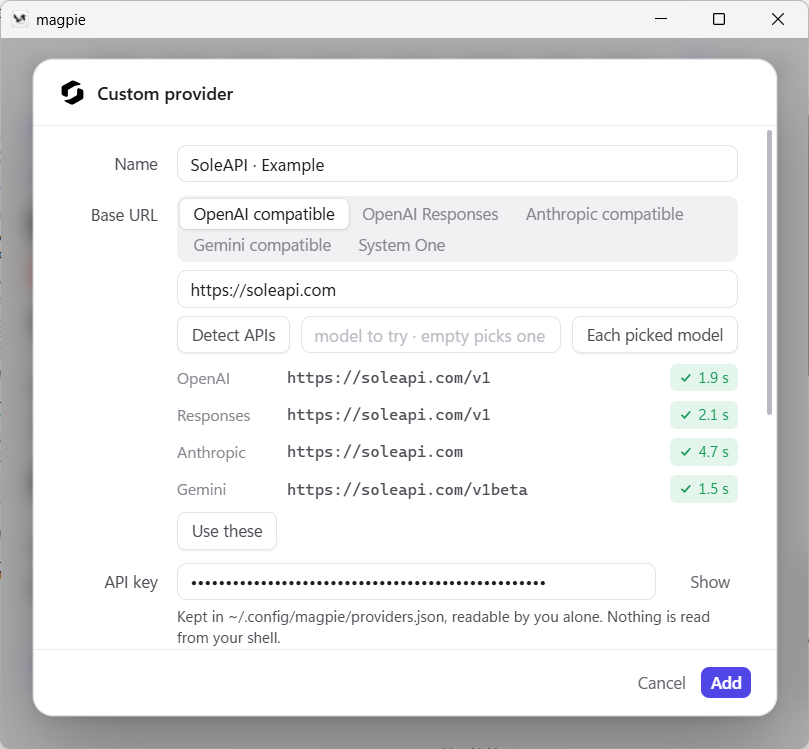
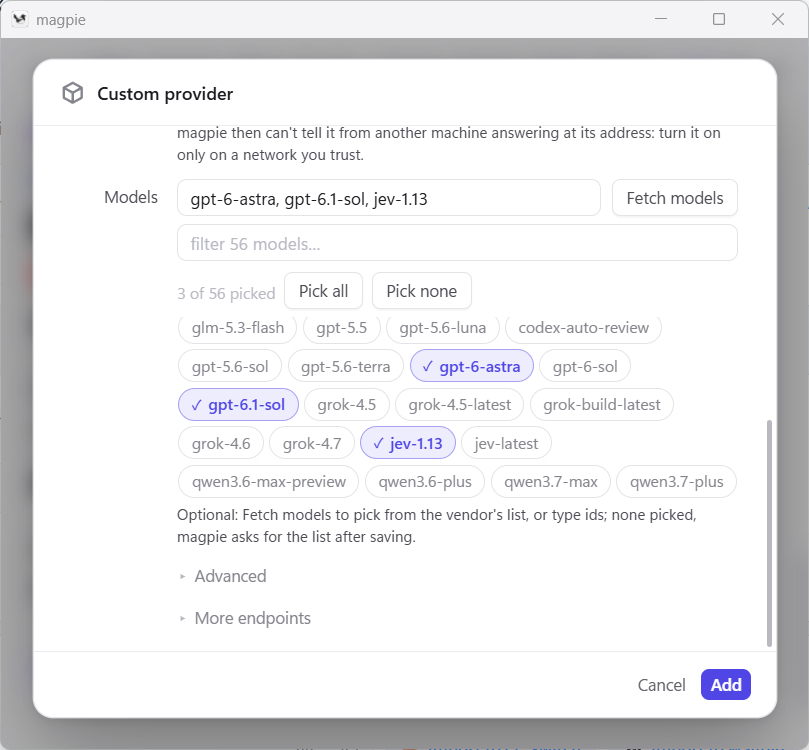
-
Add and enable the provider.
Do not treat a menu or field name from one Magpie version as universal. Follow the labels shown by your current client.
Step 4: Enable and verify
After saving, confirm that the provider is enabled. Add it to an Agent and send a simple request. Test ordinary text first, then test streaming, tools, and other advanced features separately.
Frequently asked questions
- Clicking Import to Magpie does not open the dialog: confirm that you clicked the button on the intended API Key card or success dialog, and that the browser did not block the action.
- Magpie does not launch: make sure Magpie is installed and has been launched at least once; if it uses a custom deeplink, confirm that the protocol is registered.
- There is no target-tool or default-model selector: this is expected. Magpie imports the Key as one provider and only previews its available models; choose the model inside Magpie.
- SoleAPI does not appear after import: click the final Import to Magpie button and confirm saving in Magpie's preview. Search using the provider name you entered.
- The target model is missing: check the Key, dispatch group, and current endpoint availability.
- Repeated import behavior: importing the same Key again replaces the existing configuration.
- 401: check that the API Key is complete, active, and unexpired.
- 403: check the Key's model-group permissions and IP allowlist.
- Text works but advanced features fail: confirm the base protocol first, then test streaming, tools, reasoning, and other extensions separately.
Magpie is a third-party client. Menus, fields, and import behavior may change between versions; follow the current client UI.